



Overview
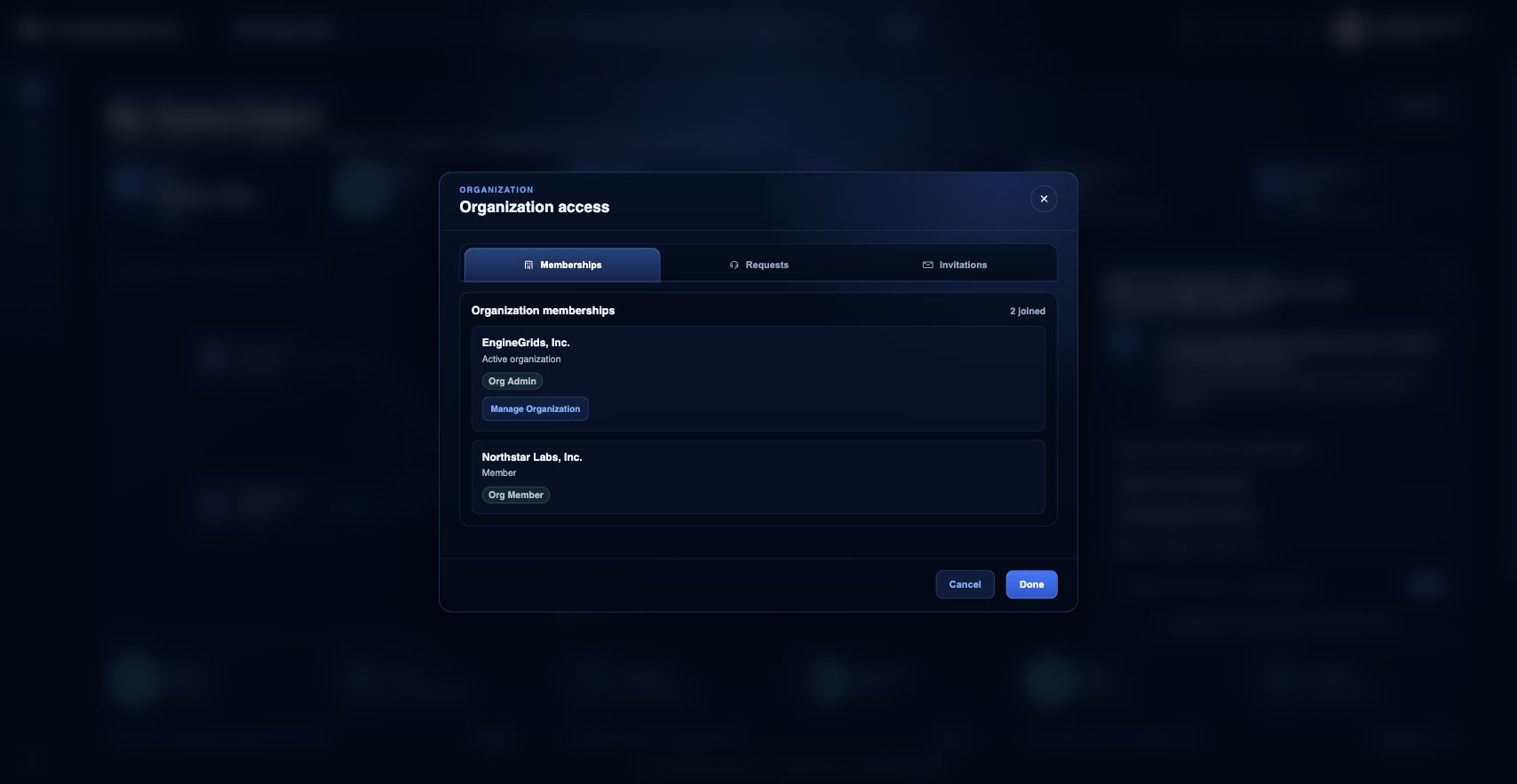
Organization access is managed from the identity badge menu. It determines which customer workspaces, grids, subscriptions, Marketplace state, and support records a user can see. Use the Organization modal to review memberships, requests, invitations, and the active organization context.
What you can do
- Review current organization memberships and the active organization.
- Request access to another organization by name or domain when appropriate.
- Review invitations when an administrator invites you into a workspace.
Recommended workflow
- Open the identity badge menu in the top bar.
- Choose Organization.
- Review the active organization and role label.
- Manage the organization when you have administrator permissions, or request membership when you need access.
- Accept or decline pending invitations from the invitations section.
Limits and expectations
- Organization access is role-based; membership does not automatically grant billing, marketplace, or deployment permissions.
- Requests may require administrator approval before access changes.
- Switching organization context changes the grids, subscriptions, and tickets visible in the portal.
FAQ
Why does changing organizations change what I can see?
Most Customer Portal data is scoped to the active organization. If you switch organizations, the visible grids, subscriptions, marketplace state, and support tickets can change.
What if I cannot complete this workflow?
Confirm the active organization, subscription, and role. If the page still does not explain the blocked state, open Support Center with the route, affected resource, expected outcome, and a screenshot that does not include secrets.