



ओवरव्यू
Organization access identity badge menu से manage होता है। यह तय करता है कि user कौन-से customer workspaces, grids, subscriptions, Marketplace state और support records देख सकता है। Memberships, requests, invitations और active organization context review करने के लिए Organization modal use करें।
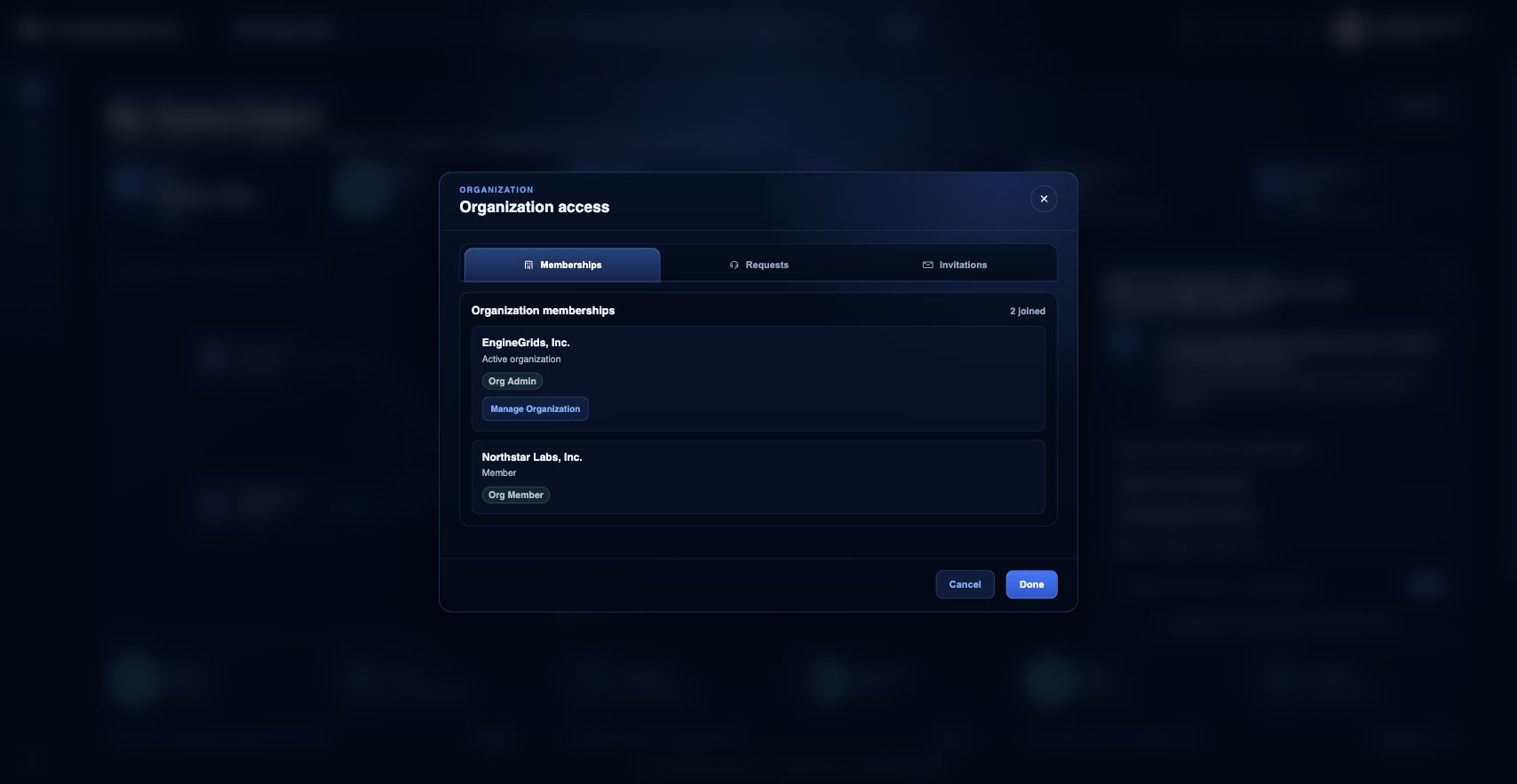
आप क्या कर सकते हैं
- Current organization memberships और active organization review करें.
- Appropriate हो तो name या domain से दूसरी organization का access request करें.
- Administrator आपको workspace में invite करे तो invitations review करें.
सुझाया गया workflow
- Top bar में identity badge menu खोलें.
- Organization चुनें.
- Active organization और role label review करें.
- Administrator permissions हों तो organization manage करें, या access चाहिए तो membership request करें.
- Invitations section से pending invitations accept या decline करें.
सीमाएँ और अपेक्षाएँ
- Organization access role-based है; membership automatically billing, Marketplace या deployment permissions नहीं देती.
- Access changes से पहले requests को administrator approval चाहिए हो सकता है.
- Organization context switch करने से portal में visible grids, subscriptions और tickets बदलते हैं.
FAQ
Organizations बदलने से मैं जो देखता हूँ वह क्यों बदलता है?
Most Customer Portal data active organization से scoped है। Organization switch करने पर visible grids, subscriptions, Marketplace state और support tickets बदल सकते हैं.
अगर मैं यह workflow पूरा नहीं कर पा रहा हूँ तो क्या करूँ?
Active organization, subscription और role confirm करें। अगर page blocked state अभी भी explain नहीं करता, तो route, affected resource, expected outcome और secrets न दिखाने वाले screenshot के साथ Support Center खोलें।